Surprising fact: I learned that small openings like a phone’s connector can collect enough lint and dust in a few weeks to interrupt power and slow charging.
I keep my device port tidy because a tiny gap traps lint fast. Each plug pushes debris deeper and that can cause a loose cable fit or intermittent charging.
This task usually takes about 5–10 minutes when I take my time. The risk is medium—using the wrong tool can bend tiny pins—so I move slowly and inspect with a bright light first.
My approach starts with short air bursts, then gentle tools if needed. If I meet resistance or see corrosion, I stop and consider professional help. For extra context, I follow advice from experts and even link to a practical guide on dust removal for more detail.how-to-clean-headlights
Key Takeaways
- Spend about 5–10 minutes and work slowly to avoid damage.
- Look for loose fits, intermittent power, or the need to wiggle the cable.
- Use inspection light and air first; use gentle tools only when necessary.
- Soft lint and compacted dust require different care steps.
- If you feel resistance or see corrosion, seek professional service.
- See an expert guide for extra tips: dust removal guide.
Why I clean my charging port regularly (and the warning signs I look for)
I inspect the connector opening weekly because tiny lint and grit build up fast and create real problems for the cable and the device. A quick flashlight check often reveals debris that will cause intermittent charging or a loose fit.
I watch for clear warning signs. If my phone only charges at certain angles, if the charger disconnects with small movements, or if the connector won’t seat fully, I know there’s a blockage. I also rule out a bad cable or adapter first since chargers can mimic the same problem.
Moisture is non‑negotiable. Water or humidity inside the opening can lead to corrosion and unpredictable connection behavior even when the area looks clean. I never blow with my mouth because that adds moisture back into the opening.
- I consider where I keep the phone — pockets, bags, and cars add lint fast.
- I act early: a packed connector means more wear if I force a cable in.
- A stable connection is the goal, not a quick fix that risks damage.
Tools I use and avoid before I start cleaning

I start every session by laying out only the gentle tools I trust most. That simple step cuts risk and saves time. A bright light, steady hand, and the right items make the task calm and safe.how-to-clean-hair-brushes
Safe gear I rely on
- Compressed air or a bulb syringe for short, controlled bursts of air.
- A wooden toothpick for careful nudges and a microfiber cloth to catch stray debris.
- Occasional cotton swab lightly damp with isopropyl alcohol for edge corrosion, used sparingly.
Risky items I skip
I avoid metal implements like pins or paper clips because metal can scratch pins and cause lasting damage. I skip toothbrushes; their bristles can snap and lodge inside.
“Never blow with your breath — warm moisture makes corrosion worse.”
Quick rules I follow
- Hold compressed air upright to avoid propellant.
- Use cotton or a swab only at the rim and never twist deep.
- Keep liquids and harsh chemicals away; small mistakes cause big damage.
How to clean charging port: safe, simple steps
I shut my device off and set a bright light before I touch the connector opening. This reduces risk and makes tiny dust and debris easy to spot.
Power down, inspect with a bright light, and start with short bursts of air
Step one: Power off the phone and aim a flashlight into the opening. I look for lint, grit, or corrosion before I do anything.
I use compressed air held upright and give short, controlled bursts. This moves loose dust without poking at delicate pins.how-to-clean-retainers
“Hold the can upright and never force the straw deep — airflow works from the entrance.”
Gently dislodge stubborn lint and debris with a wooden toothpick
If charging still fails, I power down again and use a wooden toothpick under bright light. I scrape the walls and floor with light pressure.
I avoid jabbing or twisting. Slow, minimal movements lift debris instead of pushing it deeper and reduce the chance of damage.
After lifting material, I finish with a few more short air bursts, then test a known-good charger for a snug connection.
| Action | Why I do it | Tip |
|---|---|---|
| Power off | Stops current and lowers risk | Always fully shut down first |
| Short air bursts | Removes loose dust without contact | Hold compressed air upright |
| Toothpick scrape | Lifts stubborn lint and debris | Use light pressure under bright light |
| Final test | Confirms the connection is reliable | Use a known-good charger and avoid wiggling |
If I meet resistance or see damage, I stop immediately. That preserves the device and helps decide if professional help is needed.
iPhone and iPad specifics: Lightning vs USB‑C and how I adjust my approach
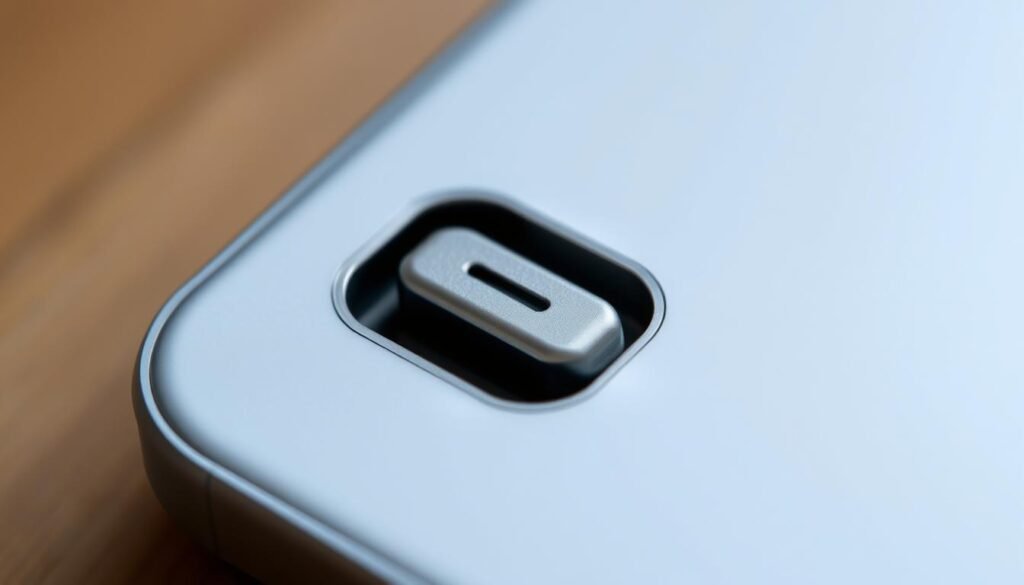
Apple connectors need a careful hand. Lightning pins sit exposed on one side, so I avoid lateral pressure and focus on gentle edge work. USB‑C is more symmetric, but I keep the same calm routine for both devices.how-to-clean-microwave
Keep the can upright to avoid propellant moisture
I always hold compressed air upright and use short bursts at the entrance. This prevents propellant from entering the opening and upsetting iphone charging performance.
Slow, well-lit scraping along the walls, then a final air pass
Under bright light I work a wooden toothpick slowly around the interior edges. I lift lint and debris without scraping hard against pins or other components.
After loosening material I use another light burst of air. Keep the nozzle at the entrance — don’t insert it deep — and keep the can upright.
Test the connection without forcing the cable
I reconnect with a known‑good Apple cable and seat the plug gently. A full, click‑like fit shows the obstruction is gone and the connection is sound.
“If the connector still feels tight, repeat gentle passes rather than forcing the cable.”
If problems remain, consider alternate causes such as a worn cable or internal battery issue. For further guidance, see this short iphone charging port guide.
Android tips: cleaning USB‑C ports on Samsung Galaxy and Google Pixel
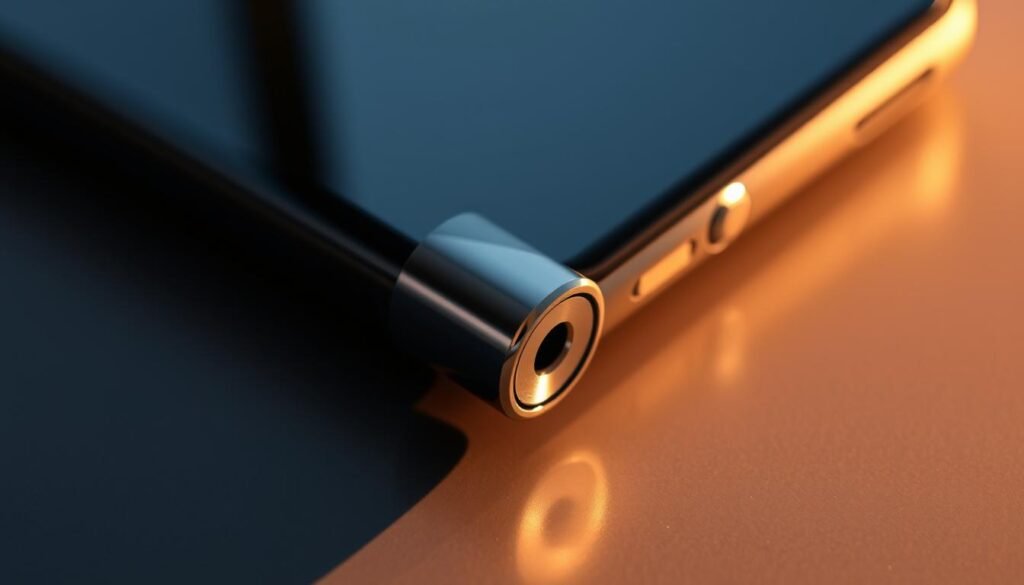
I start each session by powering the phone off and inspecting the USB‑C opening under bright light. This makes debris easy to spot and reduces the chance of shorts while I work.
Short bursts of compressed air, then careful debris removal
I use short, upright bursts of compressed air aimed at the entrance rather than shoved inside. Air from just outside moves loose dust and dirt without contact.
If the connection still feels blocked, I gently skim the walls and floor with a wooden toothpick under light. I lift compacted debris slowly and finish with another quick air pass.
What I do if the phone still won’t charge after cleaning
If charging won’t return, I swap charger, cable, and outlet to rule out accessory failure. I also restart the device and check for updates or run safe mode to spot software issues.
If I see visible damage or dirt that won’t budge, I stop and plan a professional check.
“Keep pockets lint‑free and glance at the opening when removing a case—small habits prevent big problems.”
For a step‑by‑step Android guide I trust, I follow this short Android charging cleanup.
Handling moisture and corrosion without making problems worse
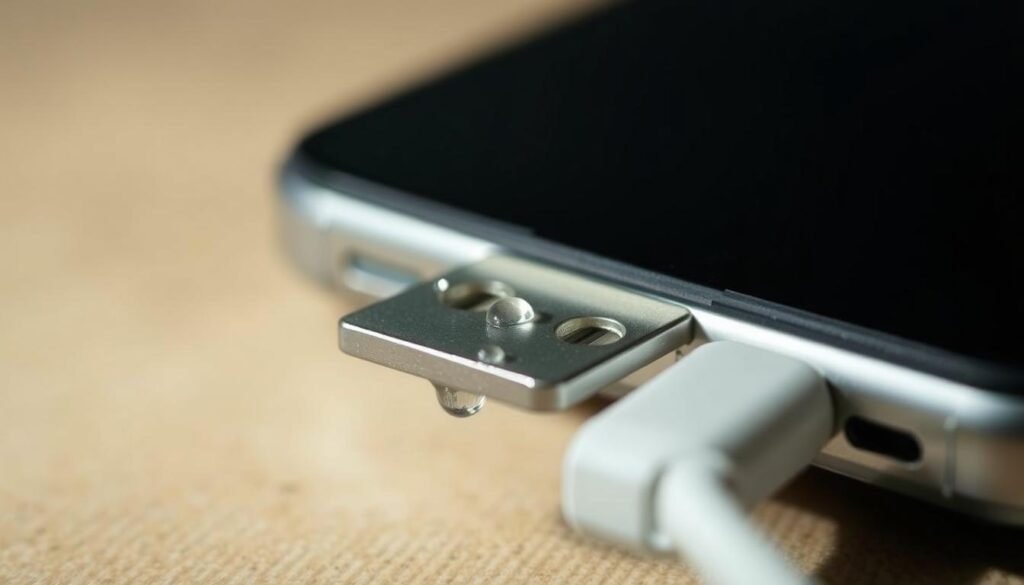
When water reaches the connector opening, I slow down and follow a strict routine. I never plug anything in, and I avoid blowing with my breath or stuffing the device in rice.
I place the device so the port faces down in a dry, ventilated spot for at least an hour. Gravity and airflow help pull out trapped water without forcing it deeper. I set the cable aside and let it dry fully before touching it again.how-to-clean-an-oven
After drying, I inspect the opening under a bright light. Green or white crusts point to early corrosion and call for professional help rather than aggressive DIY. Rushing the process risks further damage.
Safe small steps I may try
- Use a lightly dampened cotton swab with isopropyl alcohol at the outer edge only.
- Avoid metal tools—these can scrape and spread residue after moisture exposure.
- Don’t use compressed air while the area is wet; wait until fully dry.
“If corrosion is obvious, a pro cleaning is safer than scraping inside yourself.”
| Situation | My action | Why it matters |
|---|---|---|
| Wet connector | Port down for airflow; wait 1+ hour | Prevents shorts and reduces risk of damage |
| Visible corrosion | Seek professional cleaning | Avoids flaking and poor contact |
| Minor crust, dry | Edge swab with alcohol; no metal | Softens residue without harming contacts |
| Fully dry | Brief upright air burst; test with known-good cable | Clears dust and confirms safe charging |
Final note: patience keeps the process safe. I wait, inspect, and only test charging when I’m sure moisture is gone.
Prevention that saves me time: cases, port covers, and better charging habits

A tight-fitting case and a simple port cover cut my maintenance time in half. Small protections block lint and dust so I rarely need a deep session with tools or a brush.
Choosing a case with a snug fit and port covers
I pick cases that seal openings. Examples I trust include OtterBox Defender Series Pro and Commuter for real covers, or Symmetry when I want slimmer protection with good edge sealing.
Routine checks and gentle cable habits
I glance at the opening whenever I remove the case. Quick visual checks catch tiny lint before it becomes dirt that needs more work.
- I keep pockets and bags free of loose tissues or crumbs so lint does not migrate into the device.
- I insert and remove cables straight and gentle; no wiggling that grinds particles against contacts.
- I store spare chargers and my main charger in a pouch so connectors stay clean.
- I wipe the exterior with a microfiber cloth to cut down on dust that eventually sneaks inside.
“A little clean charging habit beats emergency fixes.”
| Prevention | Benefit | Quick tip |
|---|---|---|
| Case with port covers | Keeps lint and dust out | Choose Defender or Commuter for real covers |
| Slim sealed case | Lower bulk, decent edge protection | Pick Symmetry for style and sealing |
| Routine visual checks | Early detection; faster fixes | Inspect when removing the case |
| Stored chargers in pouches | Prevents debris transfer | Use small zipper pouch for accessories |
My final rule: protective gear plus small habits keep the connector working and make any needed clean charging quick and safe.
When I stop DIY and get help: cables, software, and pro cleaning

A quick accessory check often saves me time: I try another charger, cable, and wall outlet before digging deeper.
If those items work on another device, I do one careful cleaning cycle and restart the phone. If charging behavior does not improve, I look at software causes such as pending updates, background apps, or a restart that clears stuck processes.
Ruling out bad chargers, cables, and adapters
I do not blame the opening until I test known‑good accessories. A bad charger or worn cable is an easy, common problem and costs far less than repairs.
Software glitches, damage signs, and when I book a pro cleaning
If a single cleaning cycle plus a restart fails, repeated drops, visible corrosion, or bent components are my cues to stop.
I prefer a professional cleaning when debris seems embedded or the connection still drops with light cable movement. uBreakiFix by Asurion is a reliable option I trust for this service.
“If corrosion or repeat failures show up, a pro inspection protects the device from further damage.”
| Issue | My next step | Why |
|---|---|---|
| Accessory failure suspected | Test with known‑good charger, cable, outlet | Rules out easy fixes before risking the device |
| Software oddities | Restart, update, check background apps | Software can mimic hardware problems |
| Visible corrosion or bent components | Book professional cleaning/repair | Prevents worse damage and data loss |
| Embedded debris after careful DIY | Seek pro cleaning (uBreakiFix/Asurion) | Special tools remove debris safely |
I avoid risky quick fixes such as stuffing cotton soaked with alcohol deep inside or using a bristled brush that sheds fibers. Those actions can leave residue or cause further damage.
When the connection matters for work or travel, I factor in time and peace of mind and get a pro check promptly. For a practical guide and further reading, I follow this short maintenance guide.
Conclusion
I finish each session by retesting with a known-good charger and watching for a firm, steady connection. I don’t force anything; a gentle seat shows the work paid off.
My simple sequence works: power down, inspect under bright light, short upright air bursts, a gentle wooden toothpick if needed, and a final air pass before testing. I hold the can upright and never use metal or my breath.
If the device was wet, I let it dry with the opening facing down and check for corrosion before trying any plug. Small prevention steps—cases with covers and quick visual checks—save time and trouble.
If careful DIY fails, I book professional cleaning to protect the device and my time. For an in-depth guide I trust, see the ultimate guide.